Best Terminal File Manager Linux: Yazi Beats Midnight Commander
Description
Best terminal file manager for Linux in 2026 isYazi— a modern, async TUI file manager written in Rust. It delivers inline high-resolution image previews, GPU-accelerated rendering via Kitty terminal, asynchronous I/O that handles directories with tens of thousands of files without lag, native SFTP support, and full Wayland compatibility. Install it with: sudo pacman -S yazi ffmpeg 7zip jq poppler fd ripgrep fzf zoxide imagemagick (Arch Linux).
📋 Core Topics Covered in This Post
- Midnight Commander limitations in 2026
- Why Yazi is the best terminal file manager for Linux
- Yazi async architecture vs ranger and lf
- Install Yazi on Arch Linux (one command)
- Install Yazi on Debian (compile from source)
- Setting up the Kitty terminal for full previews
- Dual-pane view like Midnight Commander
- Connect directly to SFTP servers from Yazi
- Mount multiple SSH servers with sshfs plugin
- Custom bottom command bar (MC-style)
- Themes and Flavors (Catppuccin and more)
The Problem: Midnight Commander Is Great — But Shows Its Age
I have been using Midnight Commander on my Debian system with Wayland for years. It is fast, reliable, keyboard-driven, and the internal editor with syntax highlighting for C, Python, Bash, JavaScript, and PHP is genuinely excellent. For pure file operations, nothing beats its speed and familiarity.
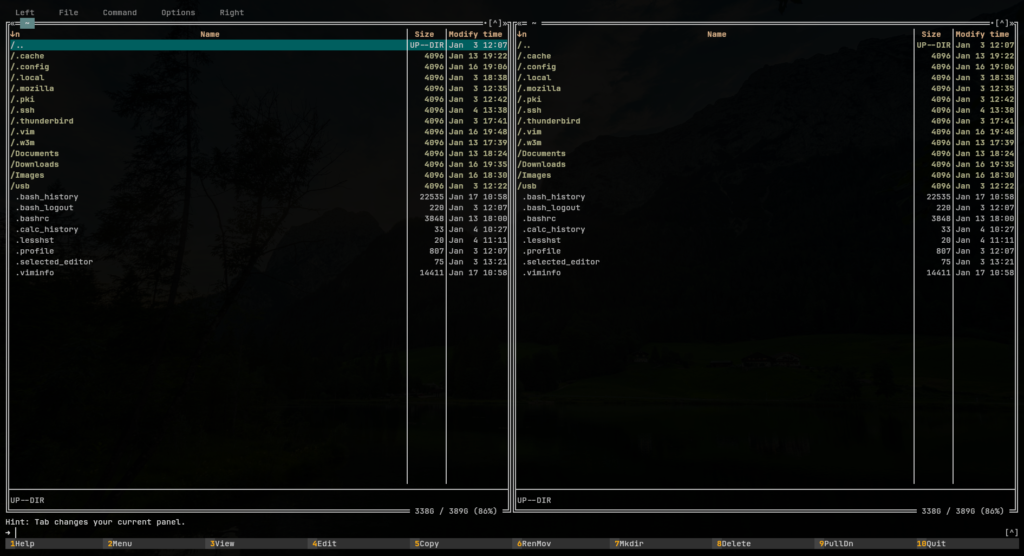
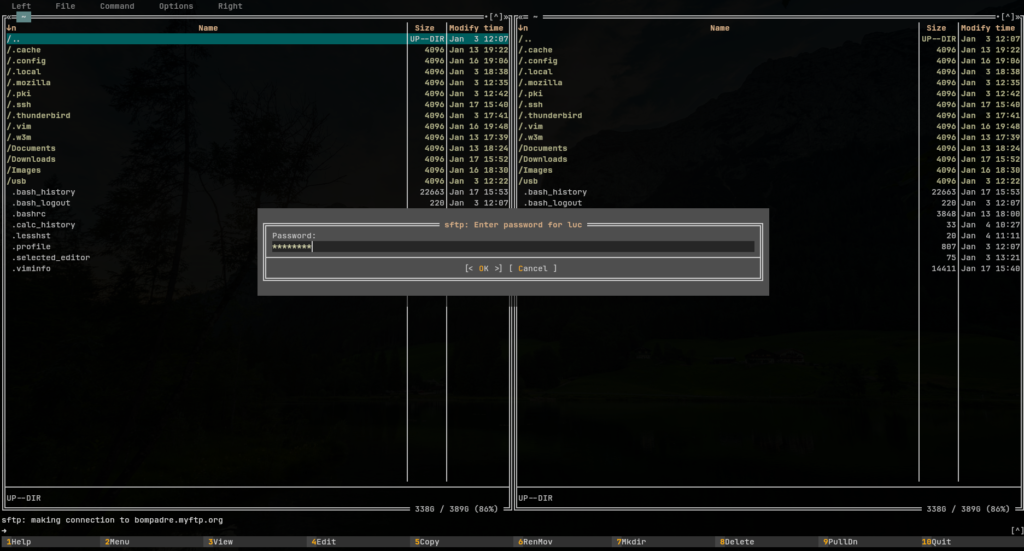
But one limitation kept coming back to haunt me: there is no modern inline preview. You cannot preview an image or a PDF directly inside the panel — everything must be opened with an external graphical application. If you work daily with hundreds of image files or PDF documents, this is a serious productivity bottleneck. You lose the ability to identify files at a glance, which forces you to open application after application just to confirm content.
When I recently used One Commander V3 on Windows 11, I was impressed by its structured, functional preview panels. But it is locked to Windows 10/11 — not an option for a Debian + Wayland setup.
So the real question became: is there a Linux terminal file manager that combines the power of Midnight Commander with the preview capabilities of modern GUI tools?
The answer is Yazi.
What Is Yazi? The Best Terminal File Manager for Linux
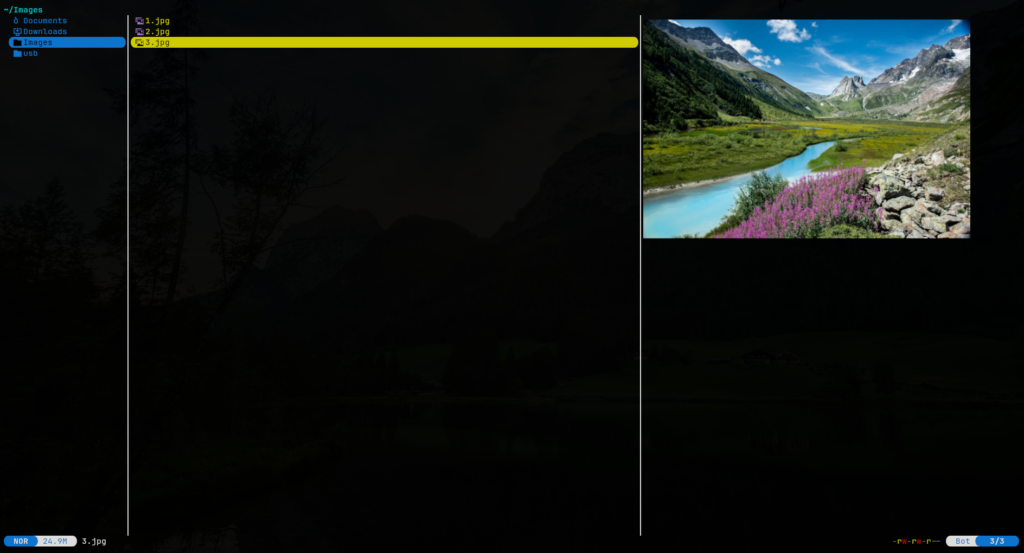
Yazi (yet another zi) is a blazing-fast, feature-rich terminal file manager written in Rust. It was built from scratch with a modern async architecture, and it shows in every interaction. Here is what makes it stand out immediately:
| Feature | Yazi | Midnight Commander | ranger | lf |
|---|---|---|---|---|
| Language | Rust | C | Python | Go |
| I/O Model | Async | Sync | Sync | Partial |
| Inline image preview | Yes (high quality) | No | Limited | Limited |
| PDF preview | Yes | No | External | External |
| Archive preview | Yes | List only | No | No |
| SFTP support | Built-in | Built-in | No | No |
| Wayland compatible | Yes | Yes | Yes | Yes |
| Plugin system | Lua plugins | Limited | Python plugins | Limited |
Why Yazi Is So Fast: Async Architecture Explained
The main technical advantage of Yazi over alternatives like ranger (Python, synchronous) or lf (Go) is its fully asynchronous I/O design. All file system operations run asynchronously. CPU-intensive tasks are distributed across multiple threads, making full use of available system resources.
In practice, this means that navigating directories containing tens of thousands of files does not freeze the interface. With ranger or lf, large directories can cause perceptible UI lag. With Yazi, the terminal interface remains completely responsive at all times.
Yazi’s async task scheduler also provides real-time progress updates on running operations, task cancellation support, and automatic internal priority assignment — all without any manual configuration.
Built-in File Search: fd and ripgrep Integration
Yazi includes a highly efficient integrated file search system:
Press s to trigger a filename search using fd — a lightweight, fast alternative to find, written in Rust. It is not as powerful as find for complex expressions, but it is significantly faster for typical use cases.
Press S (uppercase) to launch a full-text content search using ripgrep. This scans the content of every file in the current directory and displays every matching line — an incredibly powerful feature for developers working inside large codebases.
How to Install Yazi on Arch Linux
On Arch Linux, installing the best terminal file manager for Linux is a single command. The Yazi package is available in the official repositories along with all optional dependencies for full preview support:
# Install Yazi with all optional preview dependencies
sudo pacman -S yazi ffmpeg 7zip jq poppler fd ripgrep fzf zoxide resvg imagemagickbash
What each dependency provides:
ffmpeg — video and audio file previews. 7zip — archive content previews. jq — JSON file formatting. poppler — PDF preview rendering. fd — fast file search (s key). ripgrep — content search (S key). fzf — fuzzy selection. zoxide — smart directory jumping. resvg — SVG previews. imagemagick — extended image format support.
How to Install Yazi on Debian (Compile from Source)
Debian does not yet ship a pre-compiled Yazi package because the tool requires a recent version of the Rust compiler (rustc) that is not available in the Debian stable repositories as of early 2026. You need to compile from source.
Compiling Yazi from source requires significant CPU and memory resources. It may take 10–20 minutes on older hardware. Proceed only if your machine has a reasonably modern processor.
1 — Install Rust (stable toolchain)
# Install Rust via rustup (recommended official method)
curl --proto '=https' --tlsv1.2 -sSf https://sh.rustup.rs | sh

# Update to the latest stable version
rustup updatebash
2 — Clone and Build Yazi
# Clone the official Yazi repository
git clone https://github.com/sxyazi/yazi.git
cd yazi

# Compile with optimizations (release build)
cargo build --release --lockedbash
If
cargo buildfails, the Rust compiler version installed may be too old. In that case, compile Rust from source using the instructions at lfs.mirror.download.it/blfs. Extract the source tarball, installcmakeandninja-buildas dependencies, then runmakeandsudo make install. After that, retrycargo build --release --lockedinside the yazi directory. Ifcargois not found, uselocate cargoorfind / -name cargoand use its full path.
3 — Install the Compiled Binaries
# Move compiled binaries to a system-wide location
sudo mv target/release/yazi target/release/ya /usr/local/bin/bash
4 — Install Optional Dependencies on Debian
# Install all optional preview dependencies
sudo apt install ffmpeg 7zip jq poppler-utils fd-find ripgrep fzf zoxide imagemagickbash
Why You Need the Kitty Terminal for Full Image Previews
While Yazi works with any modern terminal, it reaches its full potential only when paired with the Kitty terminal emulator. Here is why:
Kitty implements the Kitty Graphics Protocol — a proprietary, high-quality protocol for rendering images directly inside the terminal at pixel-perfect quality. Other terminal emulators require complex workarounds (like the sixel protocol or Überzug++) that are difficult to configure, inconsistent across systems, and often produce low-quality or broken results.
Additional advantages of Kitty include GPU-accelerated rendering via OpenGL (vs CPU-based rendering in most other terminals), significantly better handling of Nerd Fonts, emoji, box-drawing characters, and code ligatures. With Kitty, you get zero-configuration image previews in Yazi — everything works out of the box.
# Arch Linux
sudo pacman -S kitty

# Debian
sudo apt install kittybash
Enable Dual-Pane View (Midnight Commander Style)
If you miss Midnight Commander’s classic dual-panel layout, Yazi supports it via the dual-pane.yazi plugin. Install it with the ya package manager:
ya pkg add yazi-rs/dual-panebashThe dual-pane.yazi repository was archived by its creator on March 4, 2025, but the plugin continues to work correctly with Yazi v26 and later. If it stops working in a future version, search GitHub for active forks.
Connect to an SFTP Server Directly from Yazi
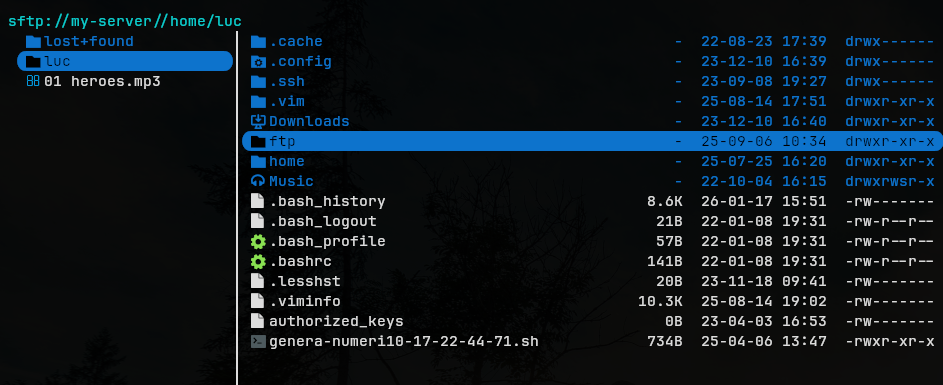
One of Yazi’s most powerful productivity features is native VFS (Virtual File System) support, including SFTP. You can browse a remote server as if it were a local directory — no separate SFTP client needed.
vsftpd Configuration Guide: Secure FTP Server Setup on Linux
Configure a Single SFTP Server
Create or edit the file ~/.config/yazi/vfs.toml:
# Using SSH key authentication (recommended)
[services.my-sftp]
type = "sftp"
host = "your-server-domain"
user = "your-sftp-user"
port = 22
key_file = "~/.ssh/id_rsa"

# Alternative: password authentication
[services.my-sftp]
type = "sftp"
host = "your-server-domain"
user = "your-sftp-user"
port = 22
password = "your-password"
If you use an SSH Agent on your system (
ssh-agent), you can omit thekey_fileentry entirely — Yazi will authenticate automatically through the agent.
Add a Keyboard Shortcut for the SFTP Connection
Edit ~/.config/yazi/keymap.toml and add:
[[mgr.prepend_keymap]]
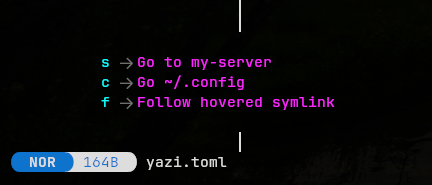
on = [ "g", "s" ]
run = "cd sftp://my-sftp"
desc = "Open my SFTP server"
With this configuration: press ‘g' then ‘s' to connect to the SFTP server. Press ‘g' then ‘h' to return to the local filesystem. Press t to open a new tab — useful for keeping one tab on the remote server and one on local files simultaneously. The SFTP connection stays open until you quit Yazi.
Mount Multiple SSH Servers Simultaneously
For power users managing multiple remote servers, the uhs-robert/sshfs plugin provides a full-featured SSH filesystem mount menu directly inside Yazi.
Secure SSH Configuration: Server Setup and Security Hardening
1 — Install sshfs
sudo apt install sshfs

# Verify fusermount is available
fusermount --version

# Install the Yazi plugin
ya pkg add uhs-robert/sshfsbash
2 — Configure the Plugin in init.lua
Edit or create ~/.config/yazi/init.lua:
require("sshfs"):setup({
  -- Directory where remote filesystems are mounted
  mount_dir = os.getenv("HOME") .. "/mnt",

  -- Password authentication attempts before giving up
  password_attempts = 3,

  -- "auto" prompts where to mount, "home" always uses home dir
  default_mount_point = "auto",

  -- "auto" reads user from ~/.ssh/config, "prompt" asks each time
  default_user = "auto",

  sshfs_options = {
    "reconnect",
    "ConnectTimeout=5",
    "compression=yes",
    "ServerAliveInterval=15",
    "ServerAliveCountMax=3",
  },
})
3 — Add Keybindings in keymap.toml
[mgr]
prepend_keymap = [
  { on = ["e","s"], run = "plugin sshfs -- menu",         desc = "SSHFS menu" },
  { on = ["e","m"], run = "plugin sshfs -- mount --jump", desc = "Mount & jump" },
  { on = ["e","u"], run = "plugin sshfs -- unmount",      desc = "Unmount" },
  { on = ["e","j"], run = "plugin sshfs -- jump",         desc = "Jump to mount" },
  { on = ["e","a"], run = "plugin sshfs -- add",          desc = "Add host" },
  { on = ["e","r"], run = "plugin sshfs -- remove",       desc = "Remove host" },
  { on = ["e","h"], run = "plugin sshfs -- home",         desc = "Mount home dir" },
]
4 — Define Your SSH Servers in ~/.ssh/config
Host server1
    HostName 192.168.1.10
    User luc
    IdentityFile ~/.ssh/id_ed25519

Host server2
    HostName 192.168.1.20
    User luc
    IdentityFile ~/.ssh/id_ed25519ssh config
Press “e" to open the sshfs menu, then select the operation from the available shortcuts. Remote filesystems are mounted under ~/mnt/ and remain mounted even after closing Yazi. Use a separate Yazi tab (t) for each server to keep your workflow clean.

Add a Midnight Commander-Style Bottom Command Bar
If you miss the function key quick-access bar at the bottom of Midnight Commander, you can recreate it in Yazi using Lua. Add the following to ~/.config/yazi/init.lua:
Status:children_add(function()
  return ui.Line {
    ui.Span("  "):fg("blue"),
    ui.Span("hjkl"):fg("yellow"),
    ui.Span(" nav  "):fg("blue"),
    ui.Span("~"):fg("yellow"),
    ui.Span(" menu  "):fg("blue"),
    ui.Span("y"):fg("yellow"),
    ui.Span(" copy  "):fg("blue"),
    ui.Span("p"):fg("yellow"),
    ui.Span(" paste  "):fg("blue"),
    ui.Span("d"):fg("yellow"),
    ui.Span(" cut  "):fg("blue"),
    ui.Span("a"):fg("yellow"),
    ui.Span(" new  "):fg("blue"),
    ui.Span("t"):fg("yellow"),
    ui.Span(" tab  "):fg("blue"),
    ui.Span("?"):fg("yellow"),
    ui.Span(" help "):fg("blue"),
  }
end, 1000, Status.RIGHT)
This renders a persistent color-coded shortcut bar at the bottom right of the Yazi interface — giving you the quick-reference visual familiarity of MC while using a fully modern file manager.
Install Themes and Flavors (Catppuccin and More)
Yazi supports a rich collection of community themes called flavors, managed through the ya package manager. Browse all available themes at the yazi-rs/flavors GitHub repository.
Install Catppuccin Macchiato
# Install the Catppuccin Macchiato flavor
ya pkg add yazi-rs/flavors:catppuccin-macchiatobash
Then activate it by editing ~/.config/yazi/theme.toml:
[flavor]
dark = "catppuccin-macchiato"toml
Close and reopen Yazi — the new theme is applied immediately. You can install multiple flavors and switch between them by changing the value in theme.toml.
Frequently Asked Questions
Is Yazi really the best terminal file manager for Linux?
For most modern use cases — especially on Wayland with Kitty terminal — yes. Yazi combines async performance, high-quality previews, a plugin ecosystem, and native SFTP support in a single tool. Midnight Commander remains an excellent choice for pure keyboard-driven file operations on minimal systems or servers without graphical terminal support.
Does Yazi work on Wayland?
Yes. Yazi is fully compatible with Wayland. Pair it with Kitty terminal (which is also Wayland-native and GPU-accelerated) for the best possible experience including full image previews.
Can I use Yazi without Kitty terminal?
Yes, but with reduced preview capabilities. Kitty uses a proprietary graphics protocol that delivers perfect image rendering without configuration. With other terminals (Alacritty, Konsole, gnome-terminal), image previews may require additional setup and produce lower quality results. Kitty is strongly recommended for the full Yazi experience.
How do I update Yazi on Debian after compiling from source?
Pull the latest changes from the repository, re-run cargo build --release --locked, and replace the binaries in /usr/local/bin/. It is a good practice to check the Yazi GitHub releases page before updating to review breaking changes in the configuration format.
What is the difference between Yazi and ranger?
Both are three-panel terminal file managers with preview support, but their architectures differ significantly. Ranger is written in Python and uses synchronous I/O — large directories cause UI lag. Yazi is written in Rust with a fully async design that stays responsive regardless of directory size. Yazi also delivers significantly better image preview quality, especially with Kitty terminal.
Want learn more about my work? Don’t forget to look at Linux Mastery 100 Guides
