Rsync SSH Backup Tutorial: Remote Backup systemd Timer
Description
Question
How do you set up an rsync SSH backup on Linux to automate remote transfers with scheduling, logging, and email notifications using systemd?
Quick Answer
To automate remote backups with rsync over SSH, you need three components: a passwordless SSH key pair for authentication, an rsync shell script to handle the transfer and email notifications, and a systemd service and timer to schedule execution.
The script pushes data from a source server to a remote RAID 5 destination via rsync over SSH, logs the output, and sends an email report on success or failure. The systemd timer triggers the backup nightly and persists missed runs automatically.
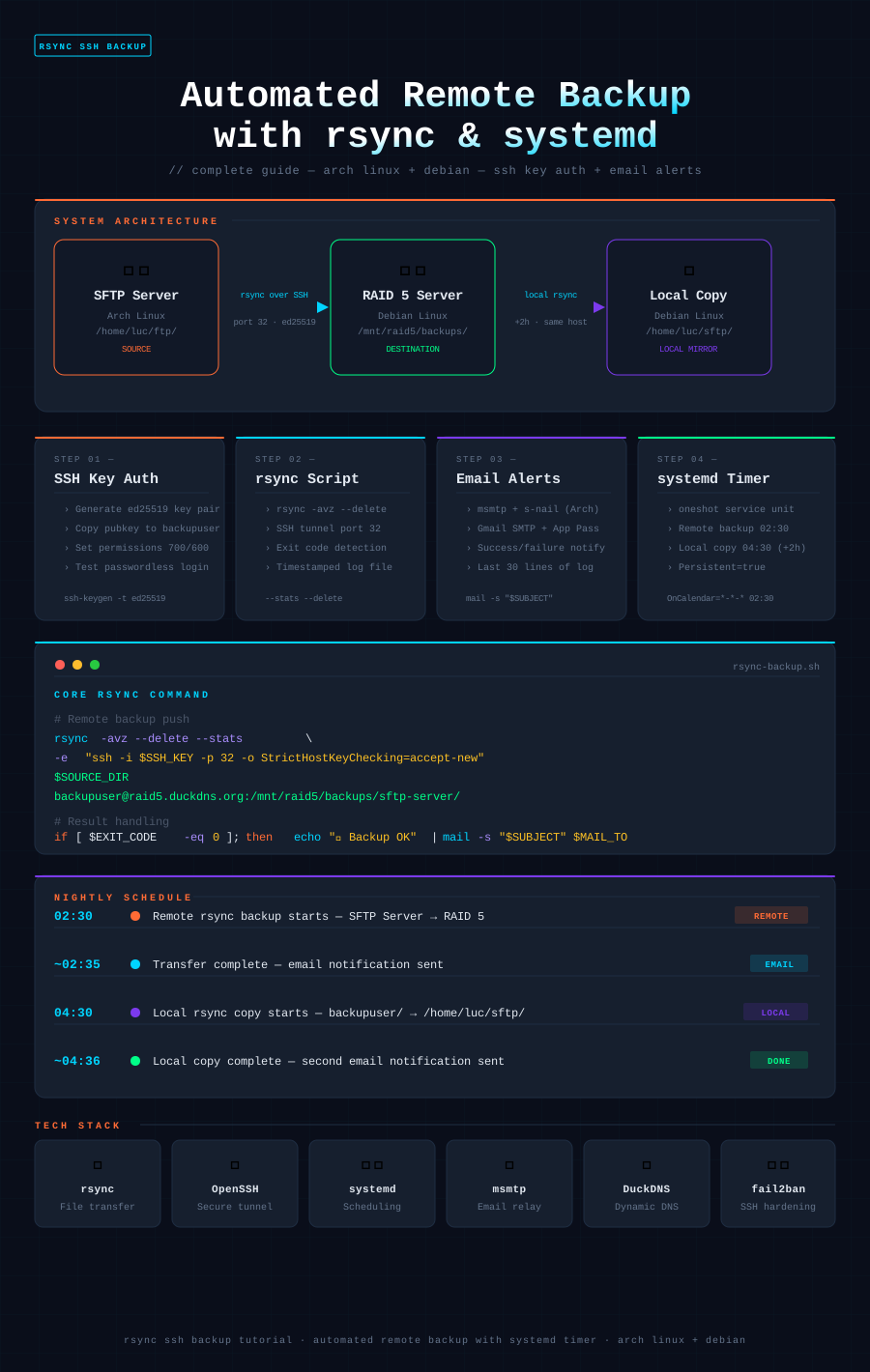
I have always needed to keep my most important documents within reach at all times — whether I was at an airport, in a hotel room, or somewhere remote with nothing but a mobile connection. For years, my solution was a remote SFTP server(an old pc): fast, reliable, and accessible from any device. But running a server exposed to the internet comes with three fundamental challenges that simply cannot be ignored: data redundancy to survive any hardware failure, security against unauthorized access and brute-force attacks, and global availability from smartphones, tablets, and PCs without compromise.
Rather than relying on proprietary cloud solutions — with their limitations, costs, and lack of transparency — I designed and built from scratch a fully automated backup system that addresses all three of these requirements simultaneously, with real-time email notifications for every critical event. The result is a robust, self-hosted infrastructure powered by battle-tested open source technologies: rsync, OpenSSH, systemd, and RAID 5(hardware raid5 with Raspberry5), running silently every night while I sleep.
This rsync SSH backup tutorial is the complete technical breakdown of that project. Every step is reproducible, every configuration file is ready to use. Whether you are running a Raspberry Pi or a dedicated server, you can implement this solution from scratch by following the instructions one step at a time. Welcome aboard — and happy travels.
Phase 1 — Prepare the RAID 5 destination server
The first step is to create a dedicated user on the RAID 5 server that will own and manage all incoming backup data. Using a dedicated unprivileged user is a key security practice — it ensures that even if the SSH key were compromised, an attacker would have access only to the backup directory and nothing else.
bash
# Create a dedicated backup user with a home directory
sudo useradd -m -s /bin/bash backupuser

# Create the destination directory on the RAID 5 mount point
sudo mkdir -p /mnt/raid5/backups/sftp-server

# Assign ownership to the backup user
sudo chown backupuser:backupuser /mnt/raid5/backups/sftp-server
Once these three commands have been executed, the RAID 5 server is ready to receive incoming rsync transfers. The destination path /mnt/raid5/backups/sftp-server will be the root of all backed-up data pushed from the SFTP server.
Linux Software RAID Configuration: Complete mdadm Setup Guide
Enable SSH key authentication for backupuser
Before copying the public key, the .ssh directory must exist on the RAID 5 server with the correct permissions. OpenSSH is strict about this — if the directory or the authorized_keys file have permissions that are too open, the server will silently reject the key and fall back to password authentication.
bash
# Create the .ssh directory as backupuser
sudo -u backupuser mkdir -p /home/backupuser/.ssh

# Lock down permissions — 700 means only backupuser can read, write and execute
sudo -u backupuser chmod 700 /home/backupuser/.ssh
At this point the .ssh directory is ready to receive the public key from the SFTP server. The authorized_keys file will be created in the next step, once the key pair has been generated on the source machine. Remember: the final permissions must be exactly 700 for the .ssh directory and 600 for authorized_keys — any looser setting will cause OpenSSH to refuse the key entirely.
Secure SSH Configuration: Server Setup and Security Hardening
Phase 2 — Prepare the SFTP source server
With the RAID 5 server ready to accept connections, it is time to set up the authentication credentials on the SFTP server. Instead of using an existing SSH key, we generate a dedicated ed25519 key pair exclusively for the backup process — this is best practice, as it allows you to revoke or rotate the backup key at any time without affecting any other SSH connection.
vsftpd Configuration Guide: Secure FTP Server Setup on Linux
Generate a dedicated SSH key pair
bash
# Generate a new ed25519 key pair — no passphrase for unattended automation
sudo ssh-keygen -t ed25519 -C "backup@sftp-server" -f /root/.ssh/id_backup -N ""
Two files will be created: /root/.ssh/id_backup (private key, never leaves this server) and /root/.ssh/id_backup.pub (public key, copied to the RAID 5 server in the next step). The -N "" flag sets an empty passphrase, which is required for the systemd service to run the backup unattended at 02:30 without any human interaction.
Copy the public key to the RAID 5 server
bash
# ssh-copy-id appends the public key to authorized_keys automatically
sudo ssh-copy-id -i /root/.ssh/id_backup -p 32 backupuser@raid5.duckdns.org
Note that ssh-copy-id takes the private key as its -i argument and automatically appends the corresponding .pub to authorized_keys on the remote server. Passing the .pub file directly will trigger a permissions warning and the key will be rejected.
Test the passwordless connection
bash
# If the output is "OK" with no password prompt, authentication is working correctly
sudo ssh -i /root/.ssh/id_backup -p 32 backupuser@raid5.duckdns.org "echo OK"
If the connection succeeds and prints OK without asking for a password, the SSH key authentication is fully operational and the system is ready for the rsync configuration in the next phase.
⚠️ Warning — SSH Port Change and Network Configuration
The default SSH port (22) has been changed to port 32 on the RAID 5 server. This is a deliberate security decision that deserves a dedicated explanation before moving forward.
Why change the default SSH port?
Port 22 is the first target of every automated bot and port scanner on the internet. Within minutes of a server being exposed with SSH on port 22, it will start receiving hundreds of brute-force login attempts per day from malicious actors scanning entire IP ranges. While a strong key-based authentication setup already mitigates this risk, moving SSH to a non-standard port like 32 adds a valuable layer of security through obscurity — it eliminates virtually all automated noise and makes your server invisible to the vast majority of opportunistic scanners.
Linux Server Security Monitoring: Essential Commands
To change the SSH port on the RAID 5 server, edit the OpenSSH configuration:
bash
sudo nano /etc/ssh/sshd_config

# Find and change the following line
Port 32

# Then restart SSH to apply the change
sudo systemctl restart ssh
Open port 32 on your router
Since the RAID 5 server is accessed remotely via raid5.duckdns.org, port 32 must be forwarded through your router to the internal IP of the RAID 5 server. Access your router admin panel (typically at 192.168.1.1 or 192.168.178.1 for Fritz!Box) and create a port forwarding rule:
| Field | Value |
|---|---|
| External port | 32 |
| Internal port | 32 |
| Protocol | TCP |
| Destination IP | Internal IP of RAID 5 server |
Configure the firewall (if installed)
If your RAID 5 server has a firewall installed, make sure port 32 is explicitly allowed before restarting SSH — otherwise you will lock yourself out.
bash
# If using ufw
sudo ufw allow 32/tcp
sudo ufw reload
sudo ufw status

# If using iptables
sudo iptables -A INPUT -p tcp --dport 32 -j ACCEPT
sudo iptables-save | sudo tee /etc/iptables/rules.v4
💡 Pro tip: While you are in the SSH configuration, this is also the right moment to harden the server further by disabling password authentication entirely and restricting login to the
backupuseronly — both steps are covered in the security hardening section later in this guide.
Linux Firewall Configuration: iptables and firewalld Security
Security Hardening — Protecting Your SSH Server
A server exposed to the internet with SSH is a constant target. The following steps transform your RAID 5 server from a vulnerable open door into a hardened, resilient system. Implement all of them — each one adds an independent layer of protection.
1. Install and configure fail2ban
fail2ban monitors authentication logs in real time and automatically bans IP addresses that exceed a defined number of failed login attempts. It is the first line of defense against brute-force attacks.
bash
sudo apt install fail2banAlways create a local override file rather than editing the default configuration directly — this ensures your settings survive package updates:
bash
sudo nano /etc/fail2ban/jail.localini
[sshd]
enabled  = true
port     = 32
maxretry = 5
findtime = 10m
bantime  = 1h
Note that port must match your custom SSH port (32), not the default value ssh. Enable and verify:
bash
sudo systemctl enable --now fail2ban

# Check active bans and statistics
sudo fail2ban-client status sshd
Automated Intrusion Prevention System – Fail2ban Complete Setup
2. Disable password authentication
This is the single most impactful security measure you can take. You disable the password authentication and brute-force attacks become completely ineffective — an attacker without the private key simply cannot log in, regardless of how many attempts they make.
⚠️ Critical: Before applying this change, make absolutely sure you can connect using your SSH key. If you disable password auth while locked out of key-based login, you will lose remote access to the server entirely.
bash
sudo nano /etc/ssh/sshd_configPasswordAuthentication no
PermitRootLogin nosudo systemctl restart ssh3. Restrict SSH access by source IP (if you have a static IP)
If the SFTP server has a fixed IP address, you can instruct OpenSSH to refuse connections from any other source entirely. This is the most restrictive and effective access control available at the SSH level:
bash
# In /etc/ssh/sshd_config
AllowUsers backupuser@<IP_SERVER_SFTP>
This single line ensures that even if an attacker somehow obtained the private key, they could only use it from the exact IP address of your SFTP server.
4. Summary — hardening checklist
| Measure | Effect |
|---|---|
| fail2ban | Auto-bans IPs after 5 failed attempts |
| Non-standard port (32) | Eliminates automated scanner noise |
PasswordAuthentication no | Makes brute-force attacks impossible |
PermitRootLogin no | Prevents direct root access via SSH |
AllowUsers backupuser@<IP> | Restricts access to a single source IP |
Apply all five measures together for a server that is genuinely difficult to attack even when fully exposed to the public internet.
Full Backup Test — Dry Run Before Going Live
Before activating the systemd timer and letting the backup run unattended every night, it is essential to perform a manual dry run. The --dry-run flag instructs rsync to simulate the entire transfer without actually moving or deleting any data — it is the safest way to verify that paths, permissions, and SSH authentication are all correctly configured before committing to a real transfer.
bash
# Simulate the full backup without transferring any data
sudo rsync -avz --dry-run \
    -e "ssh -i /root/.ssh/id_backup -p 32 -o StrictHostKeyChecking=accept-new" \
    /home/YOUR-SFTP-USER/ftp/ \
    backupuser@raid5.duckdns.org:/mnt/raid5/backups/sftp-server/
What to look for in the output
A successful dry run will produce output similar to the following:
sending incremental file list
./
documents/
documents/report.pdf
images/
images/photo.jpg

sent 1,234 bytes  received 89 bytes  882.00 bytes/sec
total size is 45,678,901  speedup is 34.21 (DRY RUN)
The line (DRY RUN) at the end of the summary confirms that no data was actually transferred. The file list above it shows exactly what rsync would copy in a real run — verify that it matches what you expect.
Common issues at this stage
If the dry run fails, these are the most frequent causes:
| Symptom | Likely cause | Fix |
|---|---|---|
Connection timed out | Port 32 not open on router | Add port forwarding rule |
Permission denied (publickey) | Wrong permissions on .ssh/ or authorized_keys | Re-check 700/600 permissions |
No such file or directory | Source or destination path does not exist | Verify both paths manually |
Host key verification failed | First connection, host not yet trusted | Add -o StrictHostKeyChecking=accept-new |
Once the dry run completes cleanly with the expected file list and no errors, remove --dry-run and execute the first real backup:
bash
# First real backup transfer
sudo rsync -avz \
    -e "ssh -i /root/.ssh/id_backup -p 32 -o StrictHostKeyChecking=accept-new" \
    /home/luc/ftp/ \
    backupuser@raid5.duckdns.org:/mnt/raid5/backups/sftp-server/
A clean real transfer confirms the entire pipeline is operational and the system is ready for the final step — activating the systemd timer for fully automated nightly execution.
Linux Backup Strategies: Guide to rsync, tar, and Cloud Solutions
Mail Server Configuration — msmtp + s-nail
To receive email notifications on both backup success and failure, we need a lightweight SMTP client on both servers. We will use msmtp as the SMTP relay and s-nail as the mail user agent — a modern, actively maintained stack that works reliably on both Arch Linux and Debian.
Installation
On the SFTP server (Arch Linux):
bash
sudo pacman -S msmtp s-nailOn the RAID 5 server (Debian):
bash
sudo apt install msmtp s-nailConfigure msmtp
The configuration is identical on both servers. msmtp reads its settings from /etc/msmtprc and uses Gmail as the SMTP relay with an App Password — a 16-character token generated specifically for this purpose that bypasses two-factor authentication for automated processes.
⚠️ Before proceeding: Make sure your Gmail account has two-factor authentication enabled. Without it, App Passwords cannot be generated. Visit myaccount.google.com/apppasswords to generate a dedicated token for this backup system — use a descriptive name like
backup-sftpso you can identify and revoke it later if needed.
bash
sudo nano /etc/msmtprc# Global defaults
defaults
auth on
tls on
tls_trust_file /etc/ssl/certs/ca-certificates.crt
logfile /var/log/msmtp.log
# Gmail account
account gmail
host smtp.gmail.com
port 587
from YOUR-SENDER-MAIL@gmail.com
user YOUR-SENDER-MAIL@gmail.com
password <APP_PASSWORD_16_CHARS_NO_SPACES>
# Set Gmail as default account
account default : gmail💡 Important: Google displays the App Password as
xxxx xxxx xxxx xxxxwith spaces for readability. Enter it in the configuration file without spaces as a single 16-character string —xxxxxxxxxxxxxxxx.
Lock down the configuration file permissions immediately after saving, since it contains your App Password in plain text:
bash
sudo chmod 600 /etc/msmtprcConfigure s-nail
s-nail needs to know which MTA (Mail Transfer Agent) to use for outgoing mail. Add the following line to the system-wide mail configuration:
bash
sudo nano /etc/mail.rcbash
# Add at the end of the file
set mta=/usr/bin/msmtp
Linux Mail Server Setup: Postfix and Dovecot Configuration Guide
Test the full mail pipeline
First test msmtp directly, bypassing s-nail entirely:
bash
echo "msmtp direct test" | sudo msmtp --file=/etc/msmtprc YOUR-DESTINATION@email.comThen test the complete pipeline through s-nail, which is exactly how the backup script will send notifications:
bash
echo "Full mail pipeline test" | sudo mail -s "Backup test" YOUR-DESTINATION@email.comIf both tests deliver successfully to your inbox, the mail stack is fully operational on this server. Repeat the exact same installation and configuration steps on the other server before moving on to the backup script setup.
Backup Script — rsync-backup.sh
The backup script is the core of the entire automation pipeline. It handles the rsync transfer, structured logging with timestamps, exit code detection, email notification on both success and failure, and automatic cleanup of log files older than 30 days — all in a single self-contained bash script.
Create the script file:
bash
sudo nano /usr/local/bin/rsync-backup.shbash
#!/bin/bash
# ============================================================
# rsync-backup.sh — push to server RAID 5
# ============================================================

# --- Configuration ---
SOURCE_DIR="/home/YOUR-SFTP-USER/ftp/"
REMOTE_USER="backupuser"
REMOTE_HOST="raid5.duckdns.org"
REMOTE_PORT="32"
REMOTE_DIR="/mnt/raid5/backups/sftp-server/"
SSH_KEY="/root/.ssh/id_backup"

# Email
MAIL_TO="YOUR-DESTINATION-ALARM-MAIL@MAIL.COM"

# Log
LOG_DIR="/var/log/rsync-backup"
LOG_FILE="$LOG_DIR/backup-$(date +%Y-%m-%d).log"
RETENTION_DAYS=30

# --- Initialization ---
mkdir -p "$LOG_DIR"
START_TIME=$(date +%s)
TIMESTAMP=$(date "+%Y-%m-%d %H:%M:%S")

log() {
    echo "[$(date '+%Y-%m-%d %H:%M:%S')] $*" | tee -a "$LOG_FILE"
}

# --- rsync execution ---
log "=============================="
log "Backup started"
log "Source      : $SOURCE_DIR"
log "Destination : $REMOTE_USER@$REMOTE_HOST:$REMOTE_DIR"
log "=============================="

rsync -avz --delete --stats \
    -e "ssh -i $SSH_KEY -p $REMOTE_PORT -o StrictHostKeyChecking=accept-new" \
    "$SOURCE_DIR" \
    "$REMOTE_USER@$REMOTE_HOST:$REMOTE_DIR" \
    >> "$LOG_FILE" 2>&1

EXIT_CODE=$?
END_TIME=$(date +%s)
DURATION=$((END_TIME - START_TIME))

# --- Result ---
if [ $EXIT_CODE -eq 0 ]; then
    STATUS="✅ SUCCESS"
    SUBJECT="[Backup] ✅ Completed successfully — $TIMESTAMP"
else
    STATUS="❌ ERROR (exit code $EXIT_CODE)"
    SUBJECT="[Backup] ❌ ERROR — $TIMESTAMP"
fi

log "Status   : $STATUS"
log "Duration : ${DURATION}s"
log "=============================="

# --- Email notification ---
BODY="rsync Backup — $TIMESTAMP

Status      : $STATUS
Duration    : ${DURATION}s
Source      : $SOURCE_DIR
Destination : $REMOTE_HOST:$REMOTE_DIR

--- Last 30 log lines ---
$(tail -30 "$LOG_FILE")
"

echo "$BODY" | mail -s "$SUBJECT" "$MAIL_TO"

# --- Old log cleanup ---
find "$LOG_DIR" -name "*.log" -mtime +$RETENTION_DAYS -delete

exit $EXIT_CODE
Make the script executable:
bash
sudo chmod 750 /usr/local/bin/rsync-backup.shAdvanced Bash Scripting: Functions and Arrays – Master Guide
How the script works
Every section of the script has a specific responsibility that contributes to the overall reliability of the backup pipeline.
The configuration block at the top centralizes all variables — source path, remote host, SSH key, email recipient, and log retention period.
The log function prepends a timestamp to every line written to both the log file and stdout simultaneously via tee, making it easy to follow the backup progress in real time with tail -f while also preserving a permanent record on disk.
The rsync command uses -avz for archive mode, verbose output, and compression during transfer. The --delete flag ensures the destination is an exact mirror of the source by removing files that no longer exist on the SFTP server. The --stats flag appends a detailed transfer summary to the log at the end of each run.
The exit code detection captures rsync’s return value immediately after execution, Any non-zero exit code is treated as a failure and triggers a clearly marked error email, ensuring that a failed backup never goes unnoticed.
The log rotation at the end silently removes log files older than 30 days, preventing the log directory from growing indefinitely without requiring any external tool like logrotate.
Systemd Service and Timer — Scheduling the Automated Backup
With the script in place, the final step is to wire it into systemd as a scheduled job. We need two unit files: a service that defines how the script is executed, and a timer that defines when it is triggered. This two-file approach is the modern systemd replacement for cron jobs — more robust, better integrated with the system journal, and capable of catching up on missed runs automatically.
Service unit
bash
sudo nano /etc/systemd/system/rsync-backup.serviceini
[Unit]
Description=Rsync remote backup to RAID 5 server
After=network-online.target
Wants=network-online.target

[Service]
Type=oneshot
ExecStart=/usr/local/bin/rsync-backup.sh
User=root
StandardOutput=journal
StandardError=journal
TimeoutStartSec=6h
The After=network-online.target directive ensures the backup never starts before the network is fully available — critical for a service that depends on a remote SSH connection. Type=oneshot tells systemd that the service runs once and exits, which is the correct type for scheduled scripts. TimeoutStartSec=6h gives the transfer up to six hours to complete before systemd considers it hung and kills it — a generous window that accommodates even very large backup sets.
Master Linux systemd: Services and Daemon Management Guide
Timer unit
bash
sudo nano /etc/systemd/system/rsync-backup.timerini
[Unit]
Description=Nightly rsync backup timer — 02:30
Requires=rsync-backup.service

[Timer]
OnCalendar=*-*-* 02:30:00
Persistent=true
RandomizedDelaySec=5min

[Install]
WantedBy=timers.target
OnCalendar=*-*-* 02:30:00 schedules the backup every night at 02:30. Persistent=true is a particularly important setting — if the server was offline or the timer was inactive at the scheduled time, systemd will trigger the backup immediately at the next startup rather than silently skipping it. RandomizedDelaySec=5min adds a random delay of up to five minutes to prevent all services from firing at exactly the same second in environments with multiple scheduled jobs.
Linux Task Scheduling: Cron vs Anacron vs systemd Timers
Enable and activate
bash
# Reload systemd to pick up the new unit files
sudo systemctl daemon-reload

# Enable and start the timer immediately
sudo systemctl enable --now rsync-backup.timer

# Verify the timer is active and check the next scheduled run
sudo systemctl list-timers rsync-backup.timer
The output of list-timers will show the exact date and time of the next scheduled execution — confirm it matches 02:30 of the following day.
Run and monitor manually
To trigger the backup immediately without waiting for the timer:
bash
# Trigger the backup service manually
sudo systemctl start rsync-backup.service

# Follow the execution in real time via the system journal
sudo journalctl -fu rsync-backup.service

# Or tail the log file directly
tail -f /var/log/rsync-backup/backup-$(date +%Y-%m-%d).log
A successful first run confirms the entire pipeline — SSH authentication, rsync transfer, logging, and email notification — is working end to end and ready for fully unattended nightly execution.
